
From install to your first line in game.
Seven steps, with the real CrossVoice Studio.
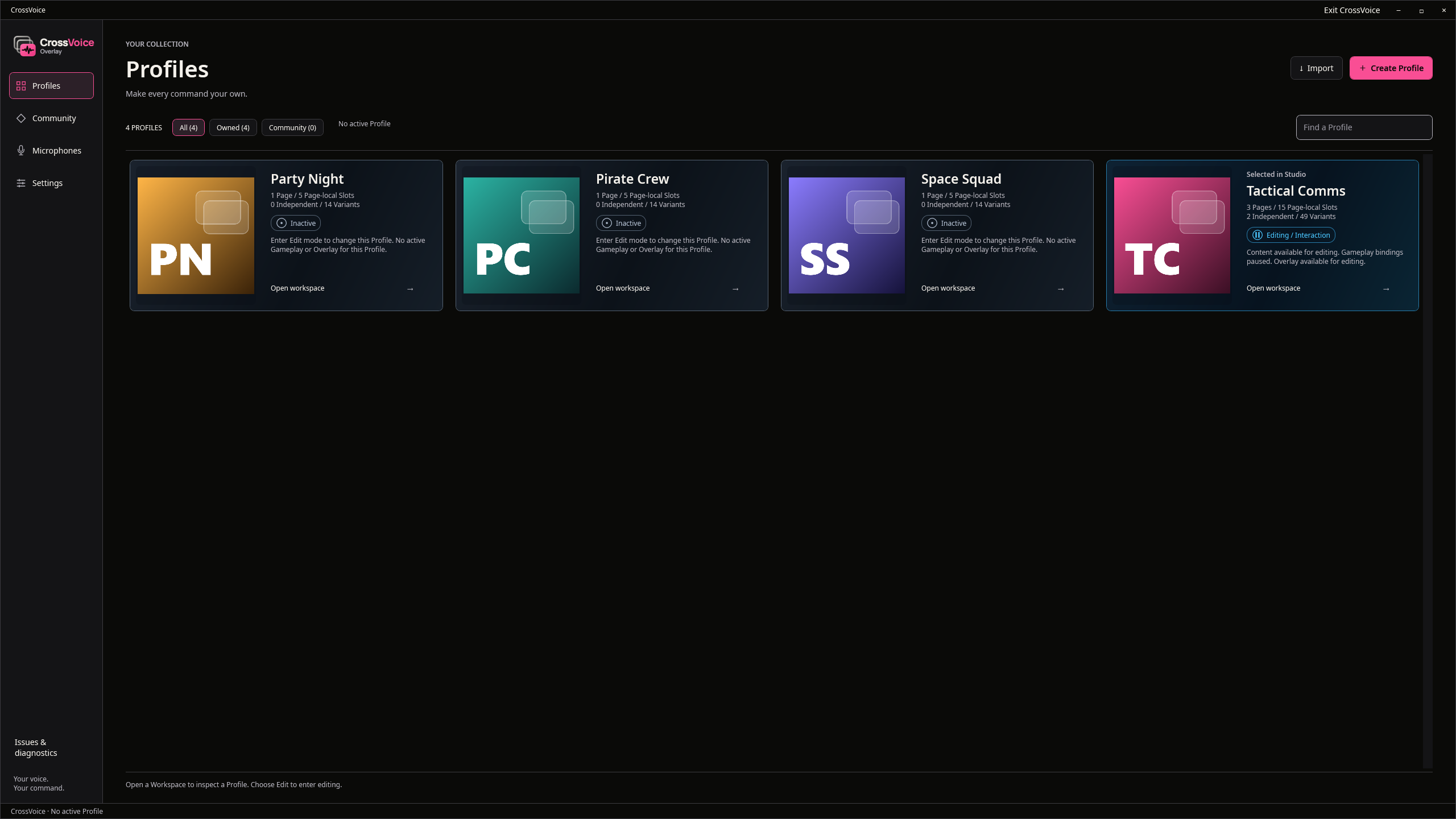
Create a Profile
A Profile is a complete set of voice lines for a game or a style. Create one, give it a cover, or start from a Community Profile.
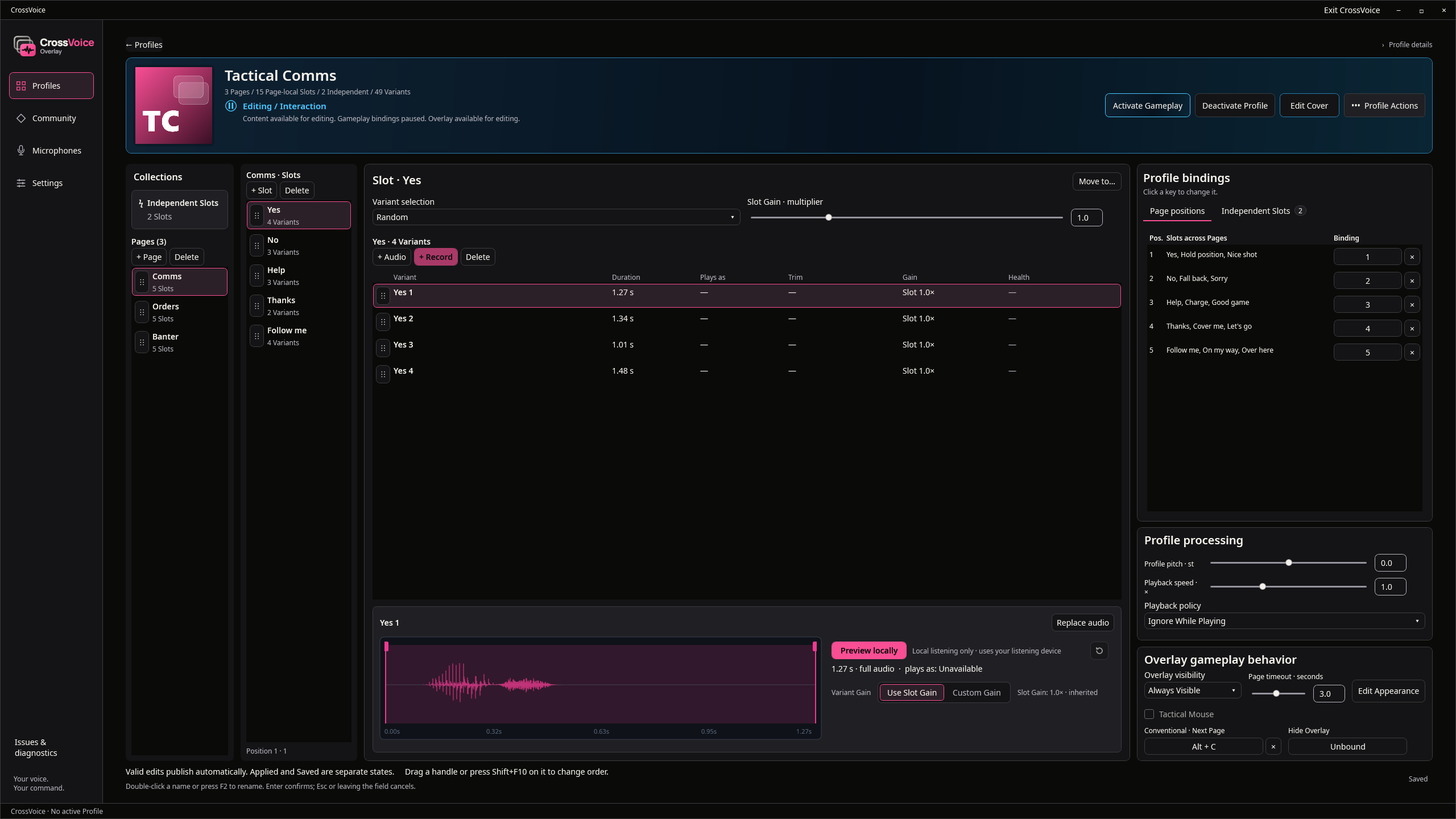
Pages, Slots and Variants
A Slot is one command, such as "Yes". Add several Variants of it and CrossVoice picks one each time. Group Slots in Pages, trim each take and set its gain; pitch and speed apply to the whole Profile.
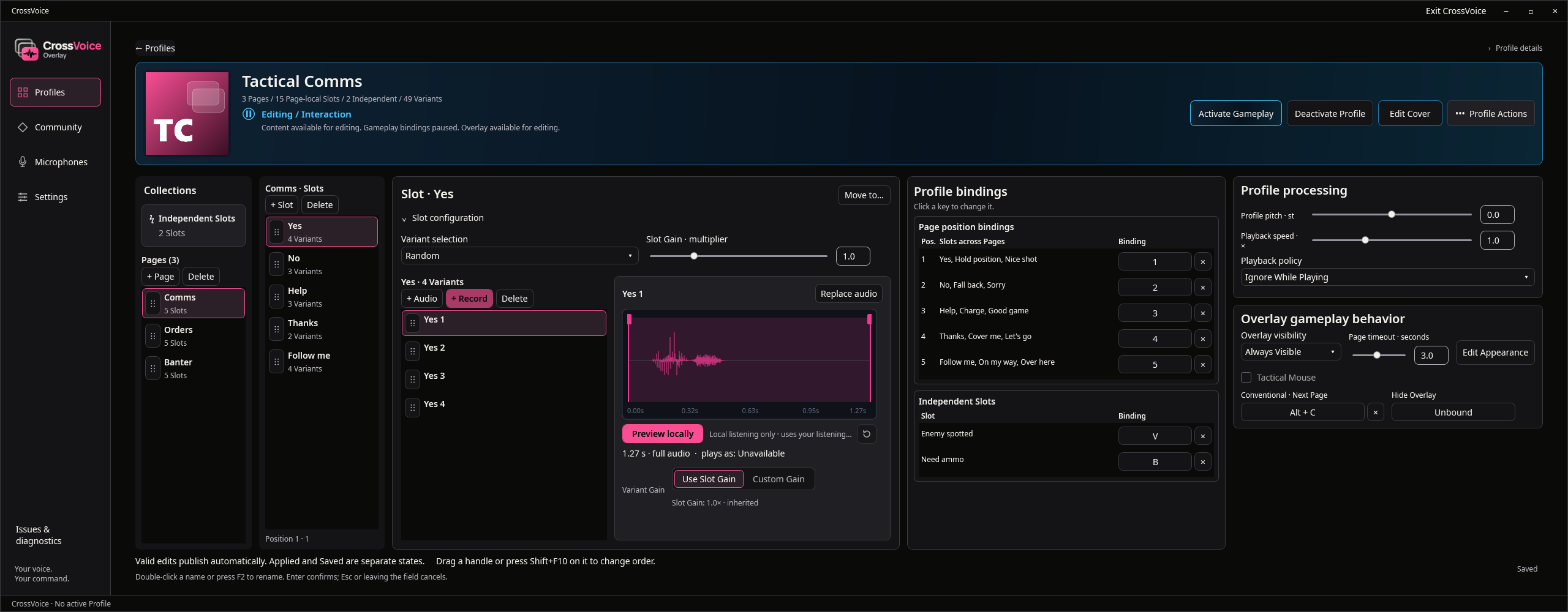
Give each line a key
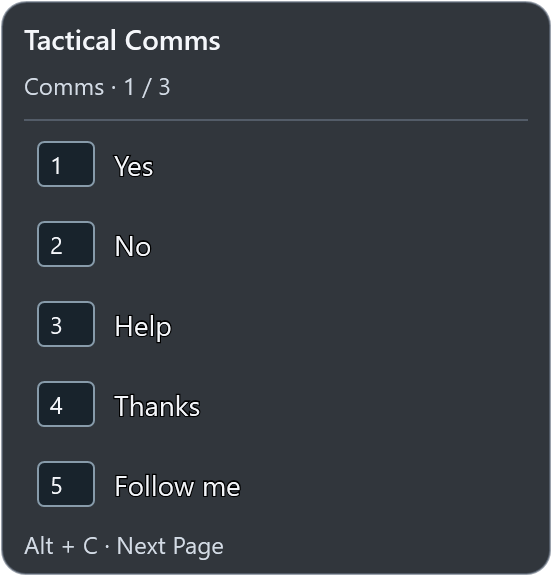
Each Page position has a key, here 1 to 5, and one key switches Page. Independent Slots get a key of their own on every Page.
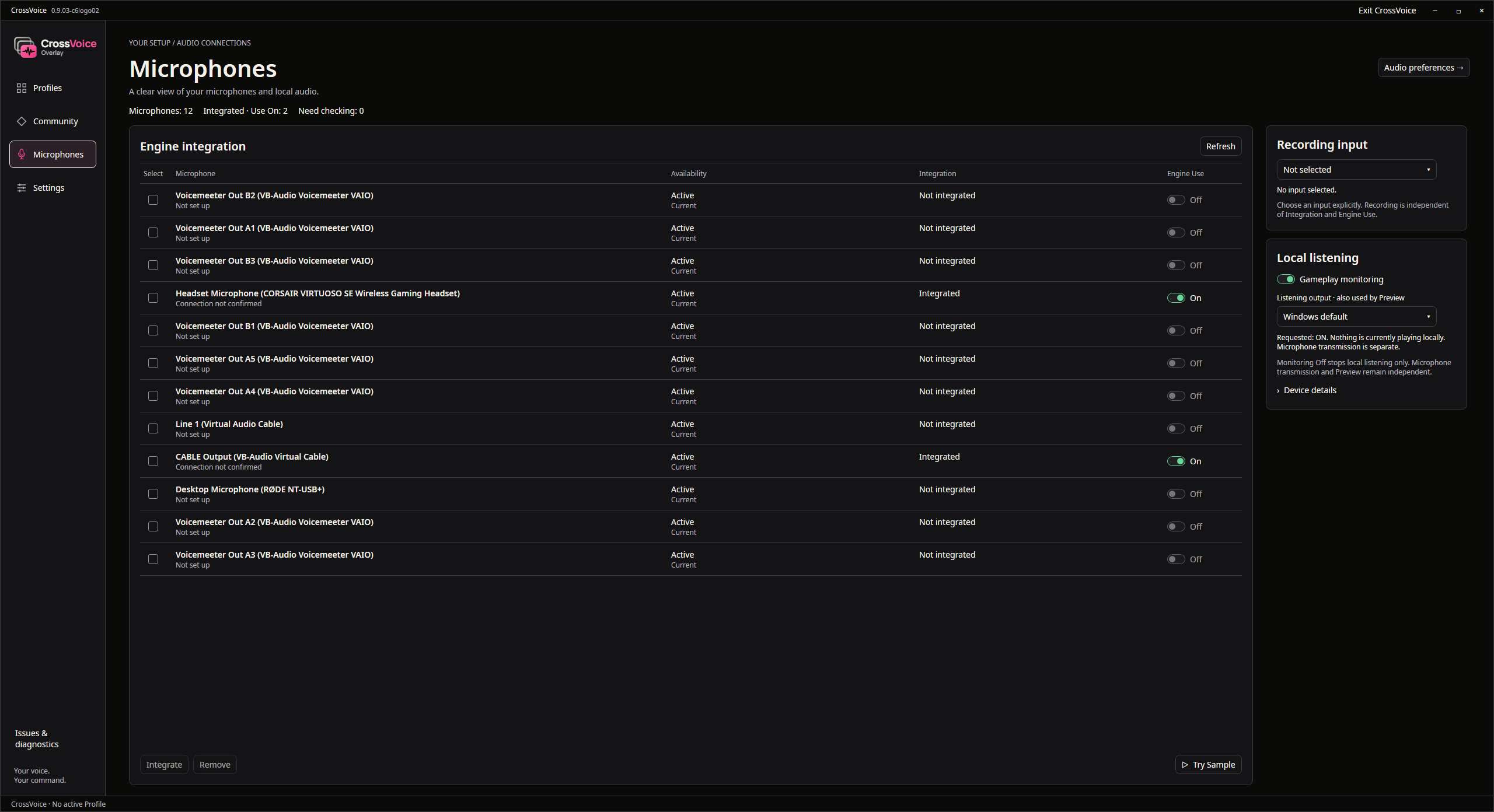
Choose your microphones
CrossVoice lists every microphone on your PC. Integrated microphones carry your lines into any game or voice app that uses them, together with your own voice.
Activate Gameplay
Activate the Profile and play. The Overlay shows the current Page and its keys; press a key and your team hears the line. If your game uses push-to-talk, set your push-to-talk key in Settings.
Interaction and Edit Appearance
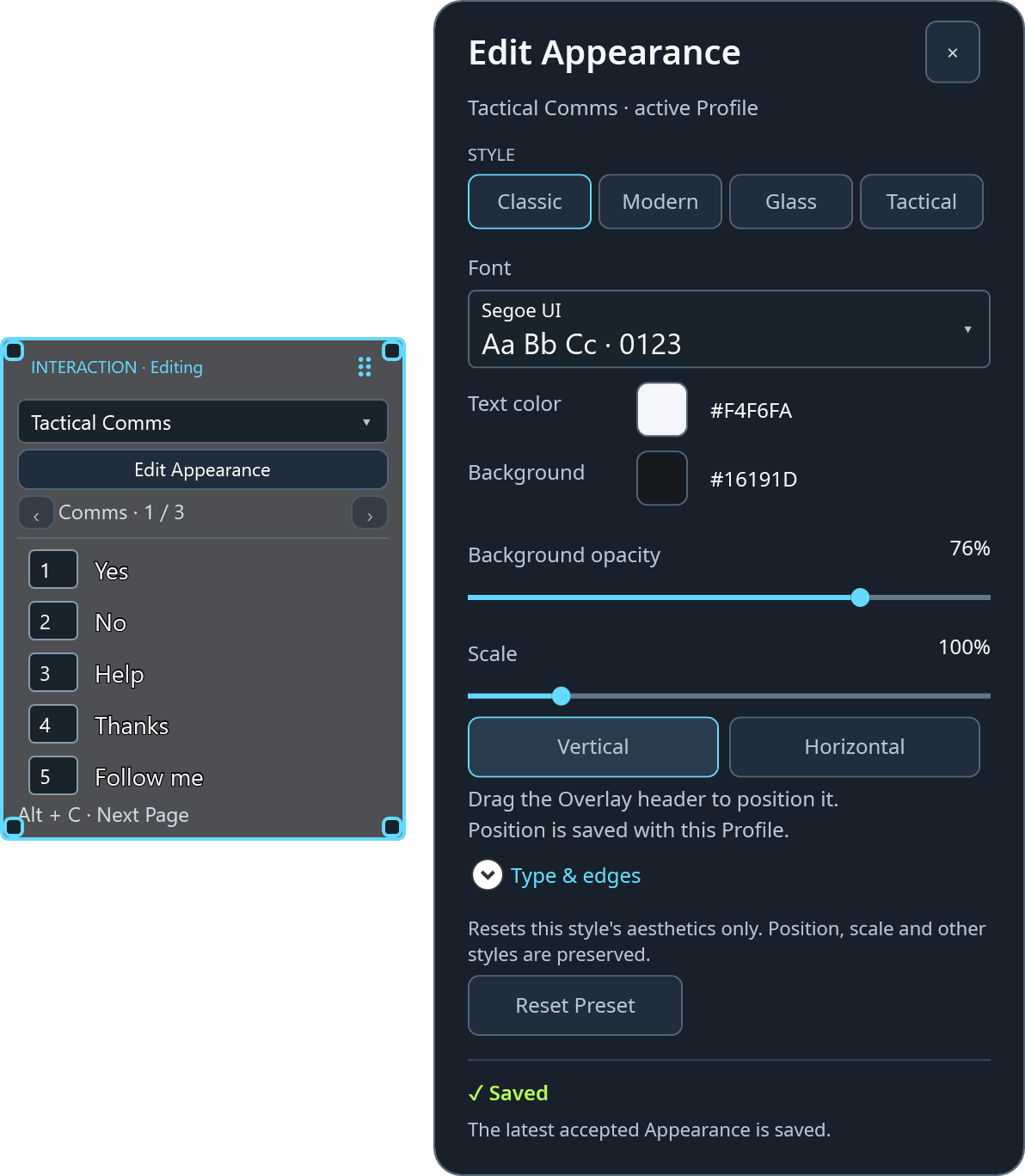
Switch to Interaction to pause your keys and type normally. From there you can drag the Overlay and open Edit Appearance to change its style, colours, size and orientation.
Preview, download and share
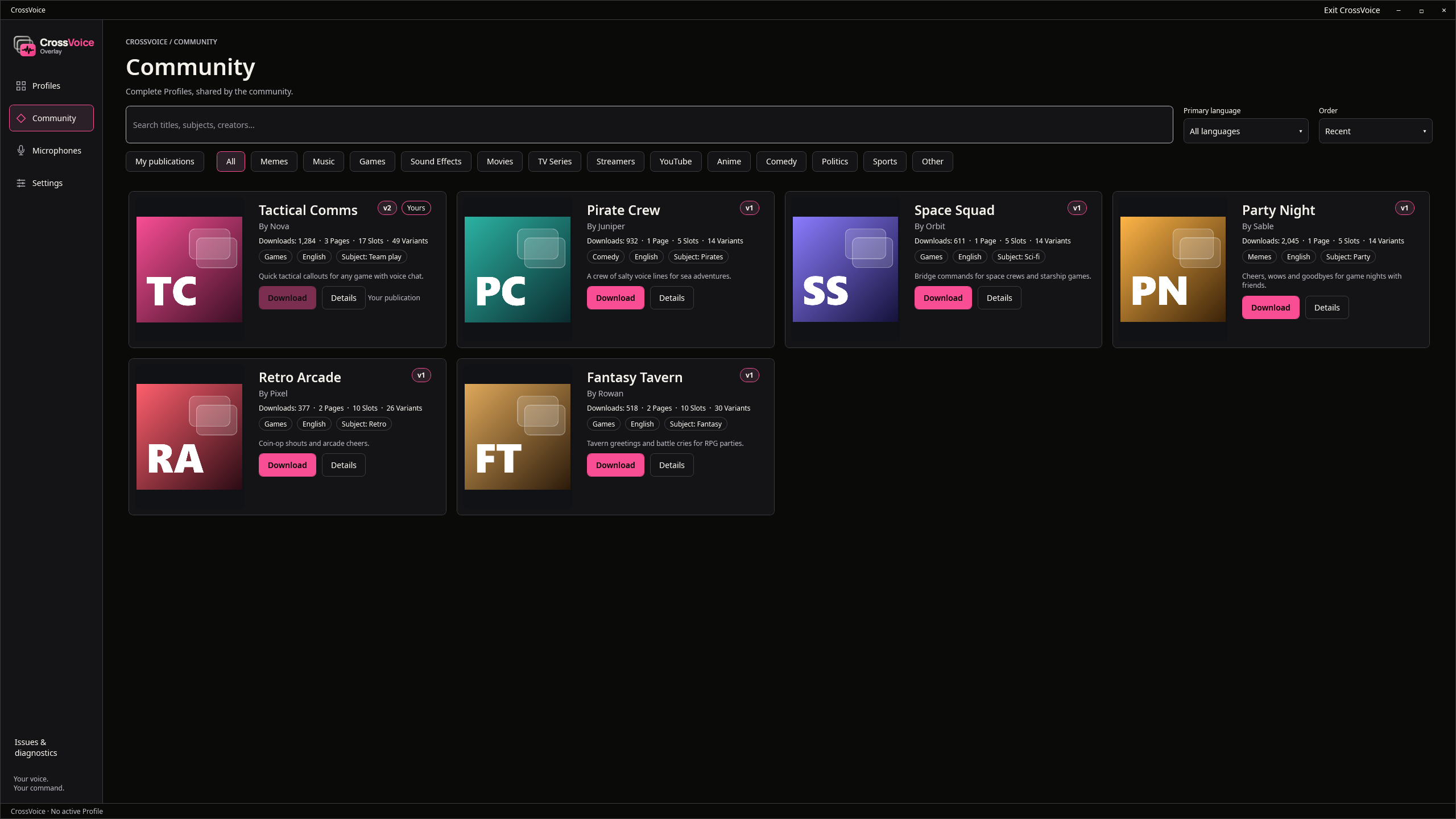
In the Community, preview a Profile before you download it, download it into your collection, or publish your own and update it later.
Need help?
Read the FAQ, or open Issues & diagnostics in CrossVoice and send us a report with the details we need.